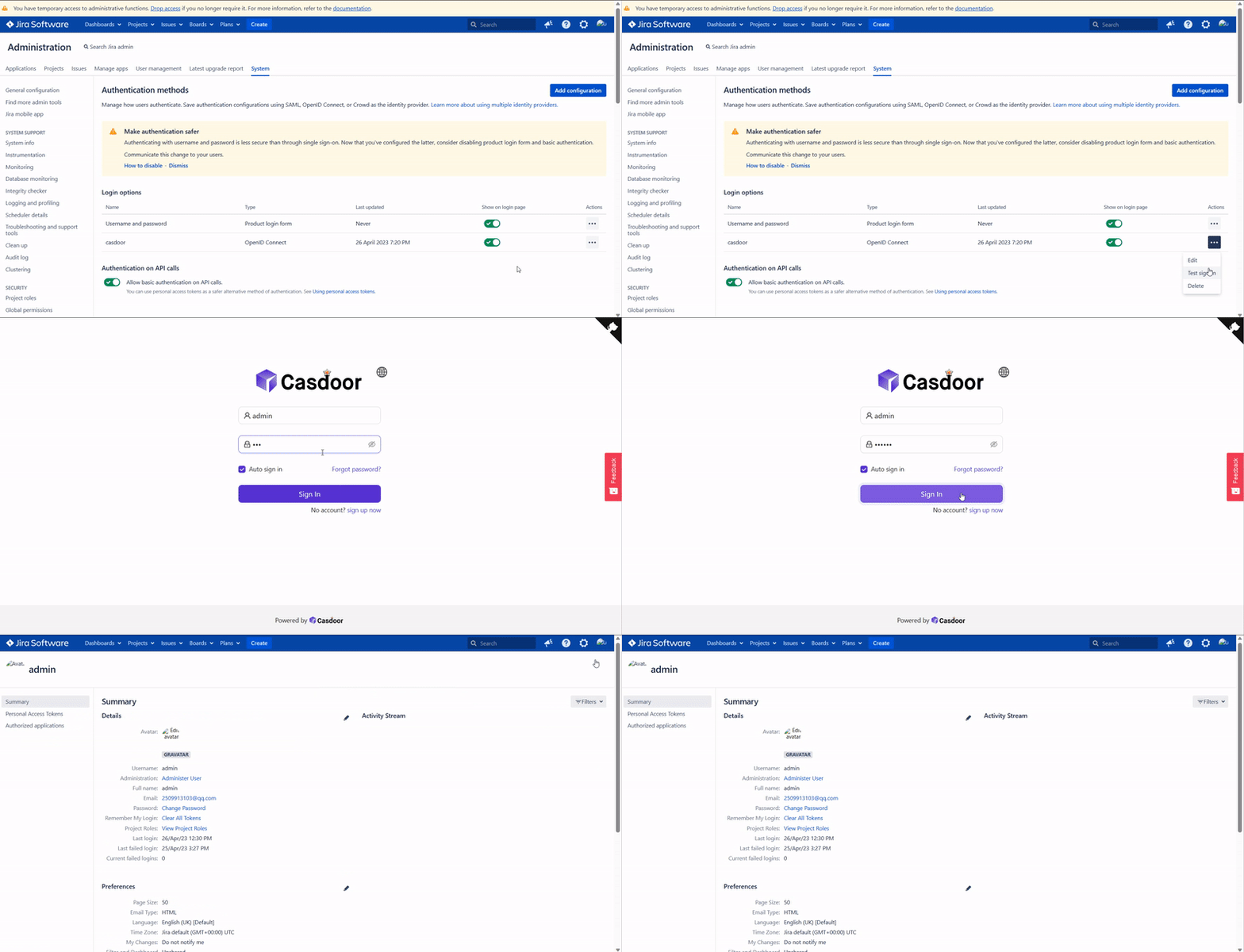
Via Built-in SSO
This is a free method to connect Casdoor, but your website must use HTTPS.
Casdoor can use the OIDC protocol as an IDP to connect various applications. Here is a Jira tutorial.
The following are some of the names in the configuration:
CASDOOR_HOSTNAME: Domain name or IP where the Casdoor server is deployed.Jira_HOSTNAME: Domain name or IP where Jira is deployed.
Step 1: Deploy Casdoor and Jira
Firstly, deploy Casdoor and Jira.
After a successful deployment, ensure the following:
- Casdoor can be logged in and used normally.
- You can set
CASDOOR_HOSTNAMEtohttp://localhost:8000when deploying Casdoor inprodmode. See production mode.
Step 2: Configure Casdoor application
- Create or use an existing Casdoor application.
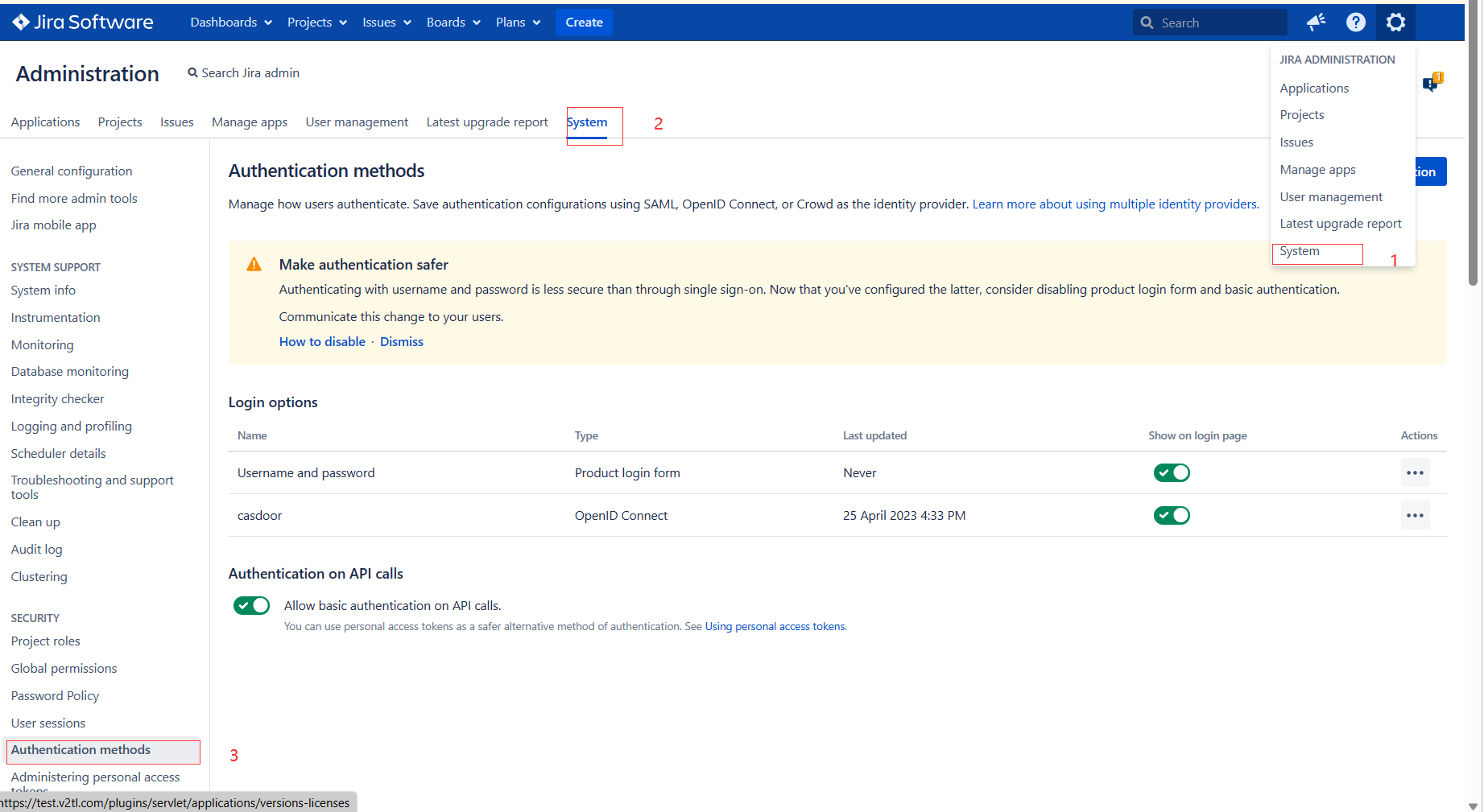
- Find Authentication methods:
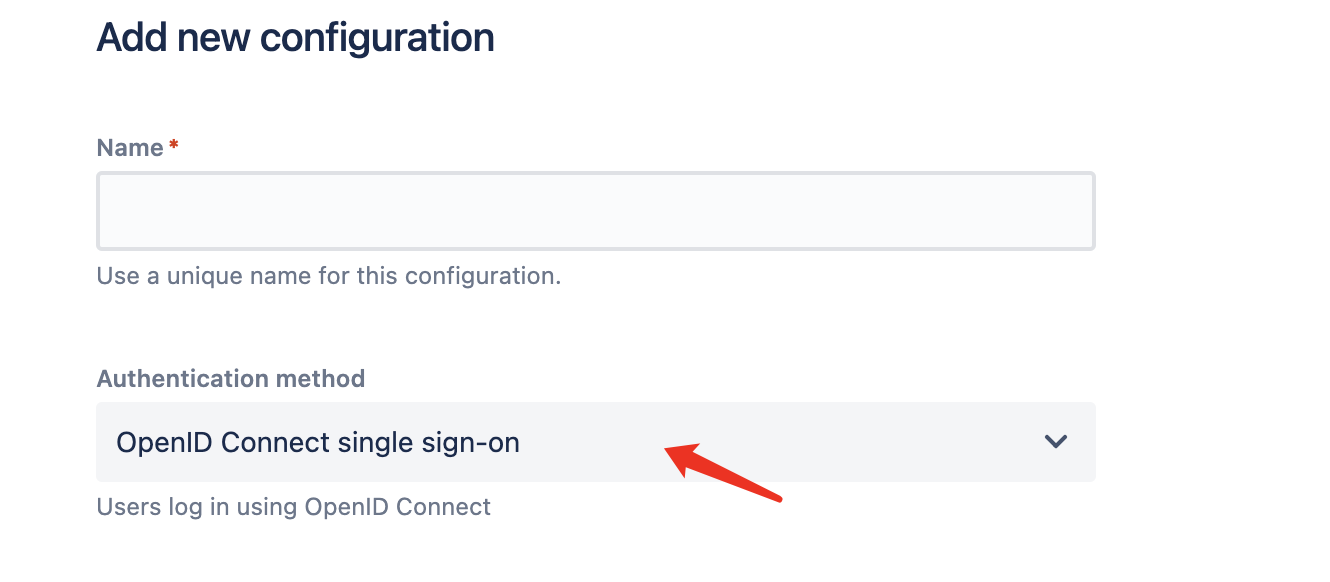
- Add a Configuration and choose OpenID Connection single sign-on in the Authentication method
- Find the redirect URL:

- Add a redirect URL:
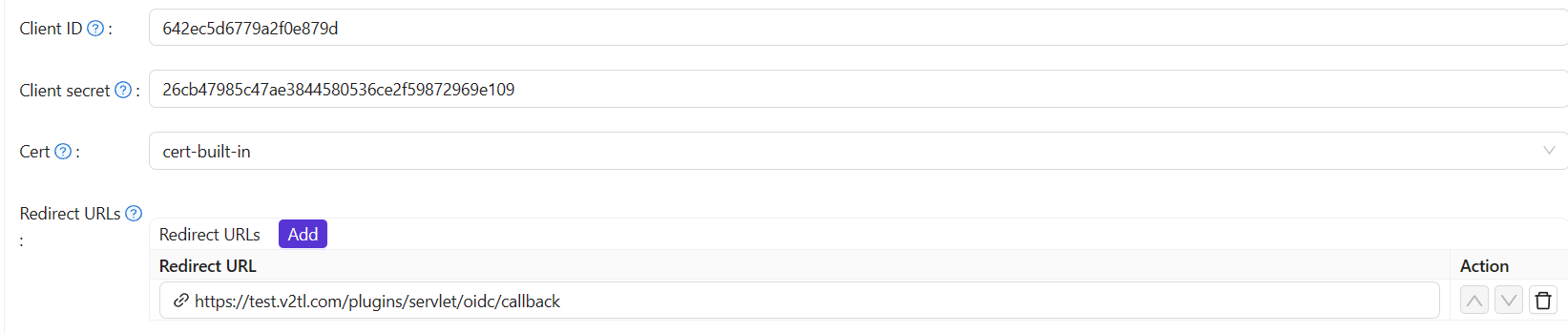
Not surprisingly, you can obtain two values on the application settings page: Client ID and Client secret, like the picture above. We will use them in the next step.
Open your favorite browser and visit: http://CASDOOR_HOSTNAME/.well-known/openid-configuration. You will see the OIDC configuration of Casdoor.
Step 3: Configure Jira
We need to continue configuring our Configuration in Jira
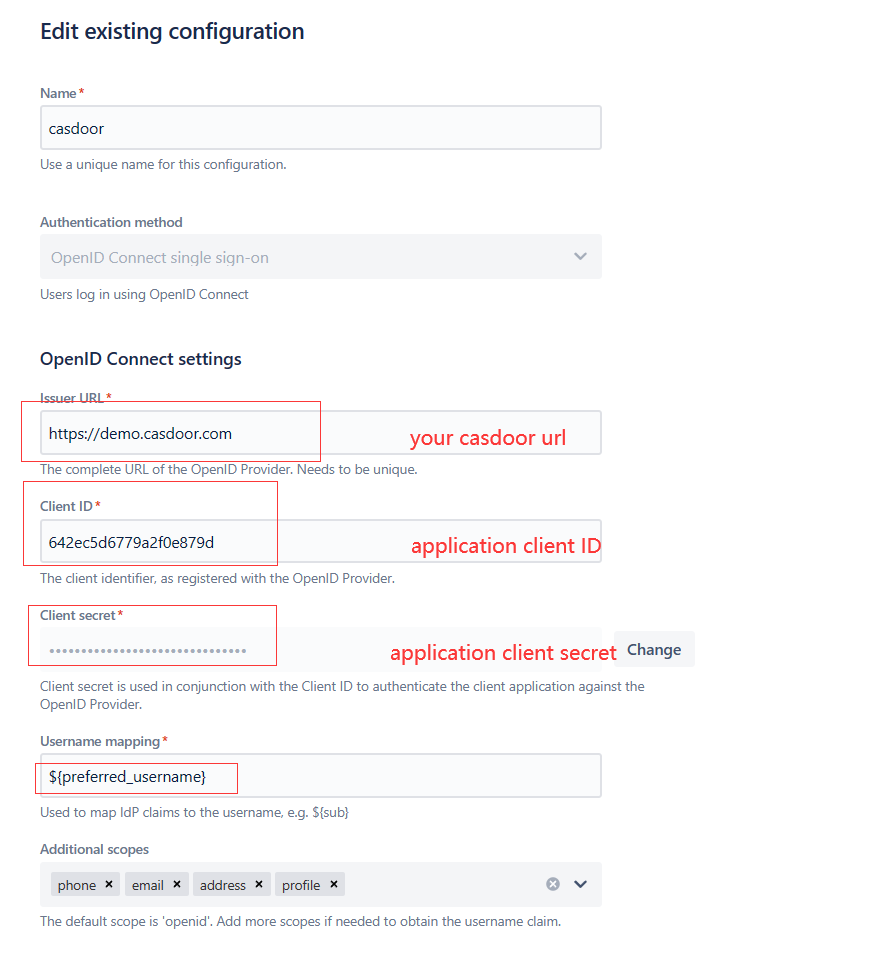
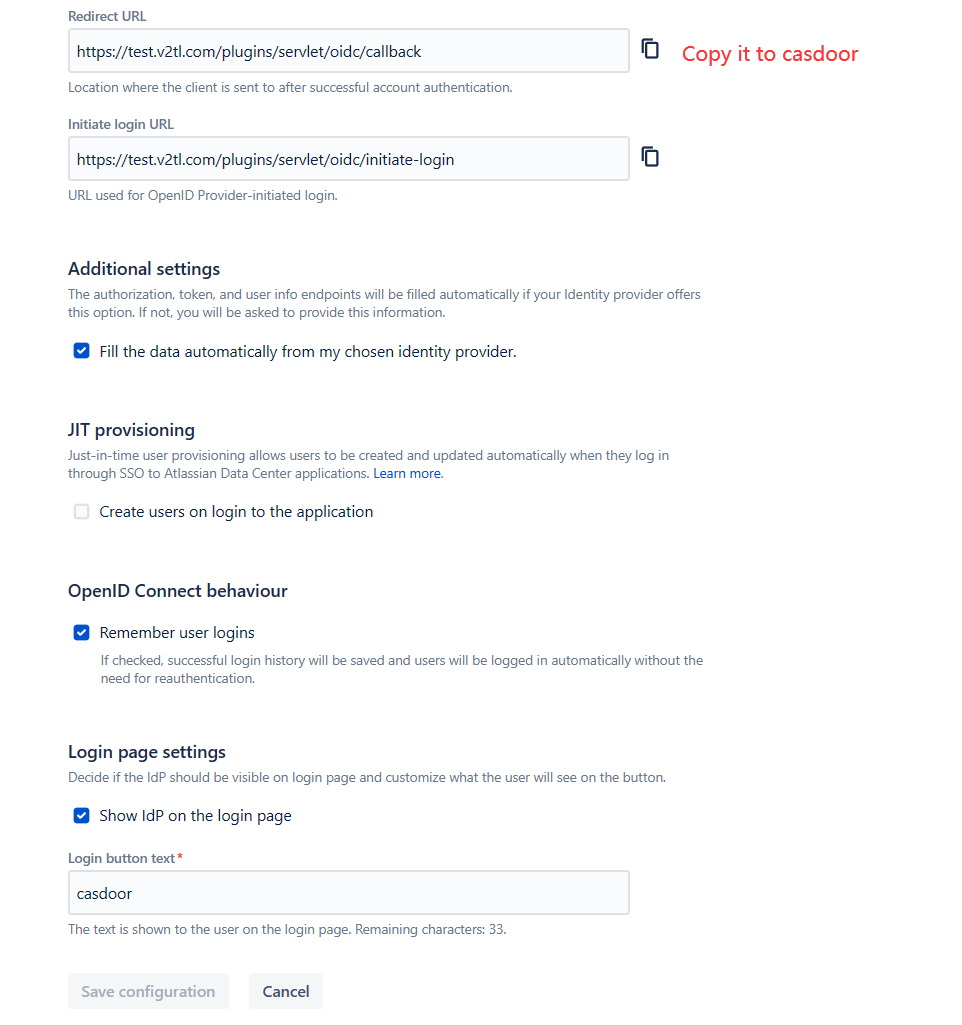
You can configure more complex authorization later. For now, check if OpenID actually works.