Appgate (POST)
Casdoor as a SAML IdP in Appgate
Appgate accepts the SAMLResponse sent by a POST request. If you use another Service Provider (SP) that also supports a POST request, you can refer to this document.
Casdoor Configuration
Go to your Casdoor account and add a new application.
Enter basic SAML configuration in the application:
Redirect URLs – Type in a unique name. This may be called
AudienceorEntity IDin your SP. See the table below.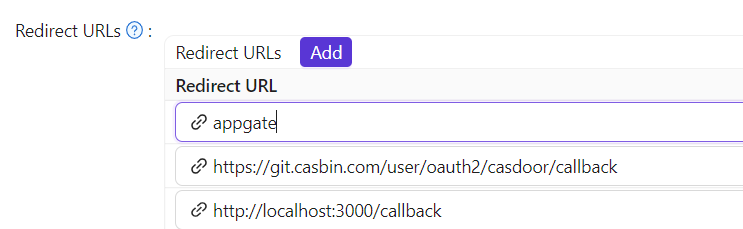
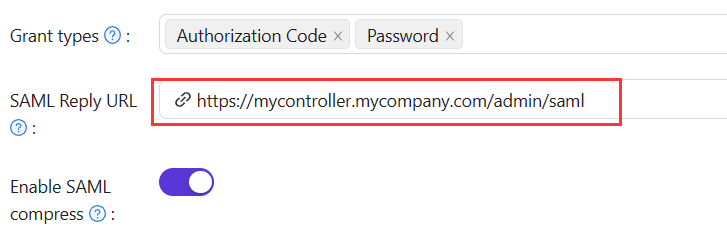
Reply URL – Type in the URL of the ACS (Assertion Consumer Service) that verifies the SAML response. Refer to the table below.
| Administrator Authentication | User Authentication |
|---|---|
| Redirect URL = "AppGate" | Redirect URL = "AppGate Client" |
| SAML Reply URL = https://mycontroller.your-site-url.com/admin/saml | SAML Reply URL = https://redirectserver.your-site-url.com/saml |
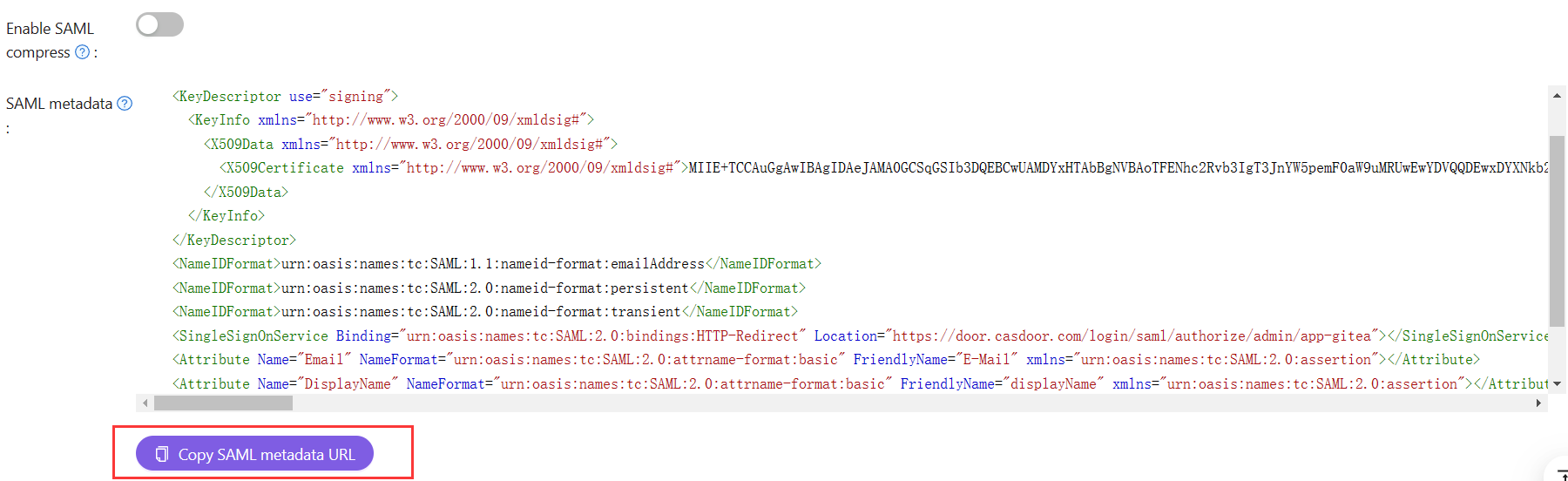
Download the XML metadata file
You can copy the URL of the metadata and download the file from your browser.
Add SAML IdP in Appgate
In your AppGate SDP console:
Select System > Identity Providers.
Create a new Identity Provider.
Choose the type SAML.
Start configuring your identity provider following the details in the tables below.
| Administrator Authentication | |
|---|---|
| Name | Enter a unique name, e.g. "Casdoor SAML Admin". |
| Single Sign-on URL | See below |
| Issuer | See below |
| Audience | Type in the Redirect URL from the Casdoor application |
| Public Certificate | See below |
Upload the XML Metadata file to autocomplete the Single Sign-On, Issuer, and Public Certificate fields.
Click Choose a file and select the metadata file that you previously downloaded - this will autocomplete the relevant fields.
Map Attributes
Map the Name to username. Your completed form should look something like this:

Test Integration
On your AppGate SDP Controller console:
Log out of the admin UI.
Log in using the following information:
Identity Provider – choose your Azure IdP from the drop-down list.
Click Sign in with browser to connect to your authenticator.
You may see the following message: "You don’t have any administration rights" – this confirms that the test user credentials have been successfully authenticated by your Identity Provider.
Access Policy
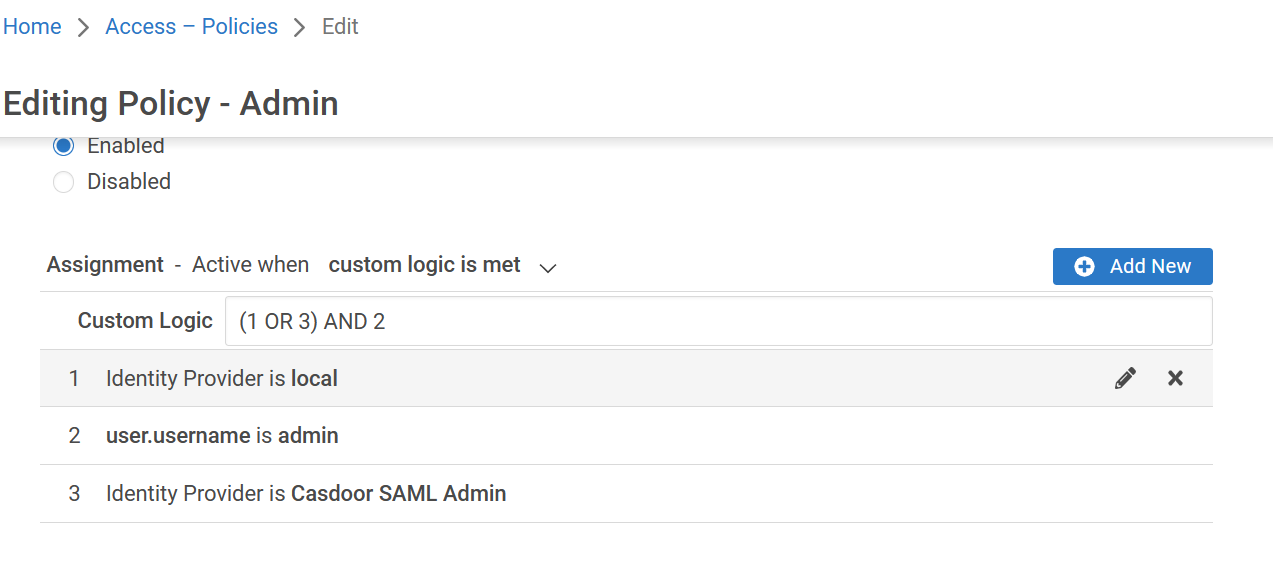
You need to modify the access policy to allow administrators to log in to Appgate using the SAML IdP. Enter the Builtin Administrator Policy:
Your completed form should look something like this: